
GuestView Setup Guide
Tap-to-Enter NFC Setup
A Nimbio NFC tag mounted at your gate lets visitors tap their phone to reach the resident directory — no app, no QR scan, and no keypad.
Before you begin
- ✓Nimbio controller installed, powered on, with the yellow PWR LED on and the red STATUS LED breathing (operating normally)
- ✓GuestView turned on for your community. Nimbio turns on the GuestView visitor directory for your community. To turn it on, contact Nimbio support.
- ✓A Nimbio NFC tag for the gate — request one through your installer or Nimbio support if you don’t have one yet
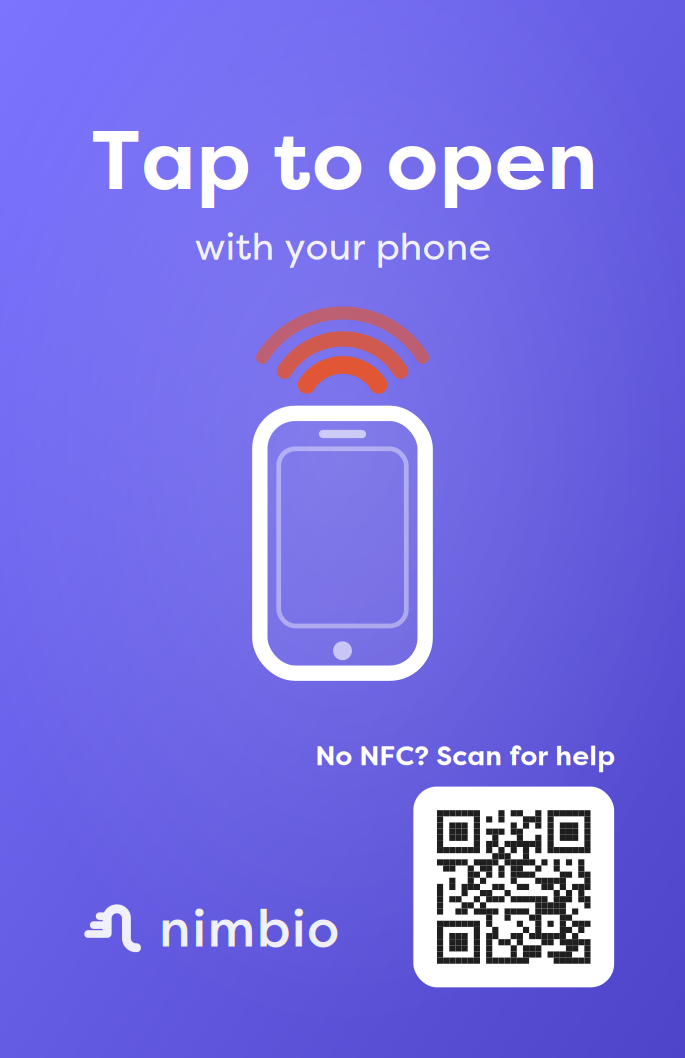
How an NFC tag gets set up
Nimbio’s NFC tags use a crypto-authenticated chip that is programmed before the tag ships. The tag is linked to your gate on the first tap.
Request a tag
Contact your installer or Nimbio support to get a Nimbio NFC tag. It arrives programmed and ready, and not yet linked to a gate.
Your installer mounts it
Peel and press the tag firmly onto the call box or gate panel — a flat, visible surface at phone height works best. Avoid placing it directly on bare metal (metal blocks NFC signal); use the plastic housing or a spacer sticker if needed.
Link the tag to your gate
Tap the tag with a phone. Until the tag is linked, the tap opens a web page that says “This tag isn’t set up yet” with an Assign this tag button. The button opens the Nimbio web portal: sign in, pick the community, pick the gate, and confirm. Then tap the tag again. A community manager can do this, and so can the installer who set up the gate.
⚠ Metal surfaces: NFC signal cannot pass through bare metal. If the call box face is metal, mount the tag on the plastic trim, a non-metal cover plate, or use an anti-metal NFC label (HF RFID on-metal label).
Test it
Unlock your phone screen (NFC doesn’t work when the screen is off on most devices).
Hold the back of your phone against the sticker for 1–2 seconds.
If you’re signed in and hold a key to that gate, it opens automatically. Otherwise, your phone opens a prompt to sign in and open it yourself, or view the community directory to reach a resident.
The directory should display resident listings. If it’s empty, the admin needs to ensure at least one resident has GuestView enabled in their Nimbio app.
Troubleshooting
Still stuck?
Our support team can walk you through setup over the phone or schedule a remote session.
Call 800‑353‑3422 Send a message →