A gate install usually goes sideways at the worst moment. The operator powers up, the app won't finish setup, residents are waiting, and everyone starts guessing whether the problem is wiring, signal, software, or the gate operator itself.
That's where installation troubleshooting separates a clean retrofit from a long service call. Cellular access control solves a lot of old access problems, including Wi-Fi instability, but the install still has to be methodical if the goal is reliable HOA security, cloud-based access control, and remote visitor management that works every day.
Table of Contents
- The Foundation of Effective Installation Troubleshooting
- Pre-Installation Checks for a Smooth Setup
- Diagnosing Power and Wiring Issues
- Solving Cellular Connectivity and Signal Problems
- Troubleshooting App Pairing and Provisioning
- Decoding Common Errors and Their Fixes
- When to Escalate to Nimbio Support
The Foundation of Effective Installation Troubleshooting
Most failed installs don't start with bad hardware. They start with a rushed assumption.
A technician sees no response from the gate, then starts moving wires, rebooting the controller, reseating connectors, and changing app settings all at once. That feels productive, but it usually makes the original fault harder to find.
In low-voltage and access control work, up to 40% of installation-related tickets come from incorrect initial configuration or misidentified root causes rather than actual hardware failure, which is exactly why a structured process matters for repeat service reduction and cleaner handoffs in the field (installation troubleshooting data from IR).
Why disciplined troubleshooting wins
The fastest technicians usually aren't the ones who move first. They're the ones who isolate the system correctly.
A cellular gate system is still a chain of dependencies:
- Power first: The controller needs stable input from the operator.
- Wiring second: Relay and input connections must land on the right terminals.
- Connectivity third: Cellular communication has to stay stable where the unit is mounted.
- Provisioning last: The app and admin account have to match the device and property setup.
Practical rule: If more than one variable changes between tests, the result can't be trusted.
That matters even more on retrofits. A smart community upgrade often keeps the existing gate operator, existing loops, existing lock hardware, and existing site habits. The new controller may be modern, but the rest of the environment may not be.
What good installation troubleshooting looks like
A solid process is simple:
- Confirm the symptom before touching anything.
- Check the obvious inputs such as power, wiring, and operator state.
- Test one change at a time.
- Verify full function after the apparent fix.
- Document what was wrong so the next truck roll doesn't start from zero.
Installers who understand how cellular gate openers work usually avoid the biggest mistake in this category. They don't treat the controller like an isolated device. They treat it like one part of a working gate system.
That's the right mindset. The light that won't turn on, the app that won't connect, and the gate that won't trigger often trace back to one overlooked detail that was available to test from the beginning.
Pre-Installation Checks for a Smooth Setup
A smooth install starts before the panel is opened. Most wasted troubleshooting time comes from skipping the site survey and finding out too late that the mounting spot, power source, or operator setup was never a good fit.
Start with the site, not the box
Before mounting a cellular controller, verify the environment where it will live. A good signal at the front entrance doesn't help if the enclosure sits behind dense concrete, metal cladding, or electrical equipment near the operator.
Use a short pre-install checklist:
- Mounting location: Verify the exact installation point is dry, secure, and practical for cable routing.
- Cellular conditions: Check signal quality at the precise mounting height and enclosure area, not from the cab of the truck.
- Interference risks: Look for nearby motors, pump equipment, utility gear, and structural shielding that can affect cellular behavior.
- Physical gate condition: Confirm the operator, safety devices, and gate movement are already working correctly before adding smart access hardware.
- Documentation on hand: Bring operator diagrams, terminal references, and credential setup details before starting.
A clean install starts with an honest answer to one question. Is the existing gate system healthy without the new controller?
That question saves time for property managers and installers alike. If the operator already has intermittent issues, adding cloud-based access control won't correct them.
Confirm operator compatibility before mounting
Retrofit work is usually straightforward when the installer confirms the operator's control inputs early. LiftMaster, Viking, DoorKing, FAAC, Nice, and similar systems can often accept an external access trigger, but the terminal behavior and accessory power can differ enough to cause confusion if the manual never gets checked.
Focus on these points:
- Trigger input type: Confirm which terminals accept the access command.
- Accessory power availability: Verify whether the operator provides usable low-voltage output for the controller.
- Shared devices: Identify any existing keypad, call box, loop detector, or receiver already tied into the same control path.
- Enclosure space and routing: Make sure the install won't create cramped, failure-prone wiring inside the cabinet.
For contractors building recurring service work, the same discipline applies across trades. The value in a preventative checklist is similar to how recurring maintenance creates stability in an irrigation system revenue stream. The install is cleaner when the technician looks at the whole asset, not just the new component.
A final pre-install habit matters more than most new installers expect. Take photos before changing anything. Existing terminal layouts, jumper positions, and accessory wiring often answer questions later when the gate suddenly behaves differently after power cycling.
Diagnosing Power and Wiring Issues
A common service call goes like this. The controller powered up on the bench, the app setup looked fine, but once it was tied into the gate operator it started dropping offline or stopped responding during a cycle. In cellular access control, that often gets blamed on signal first. On site, power is usually the main problem.
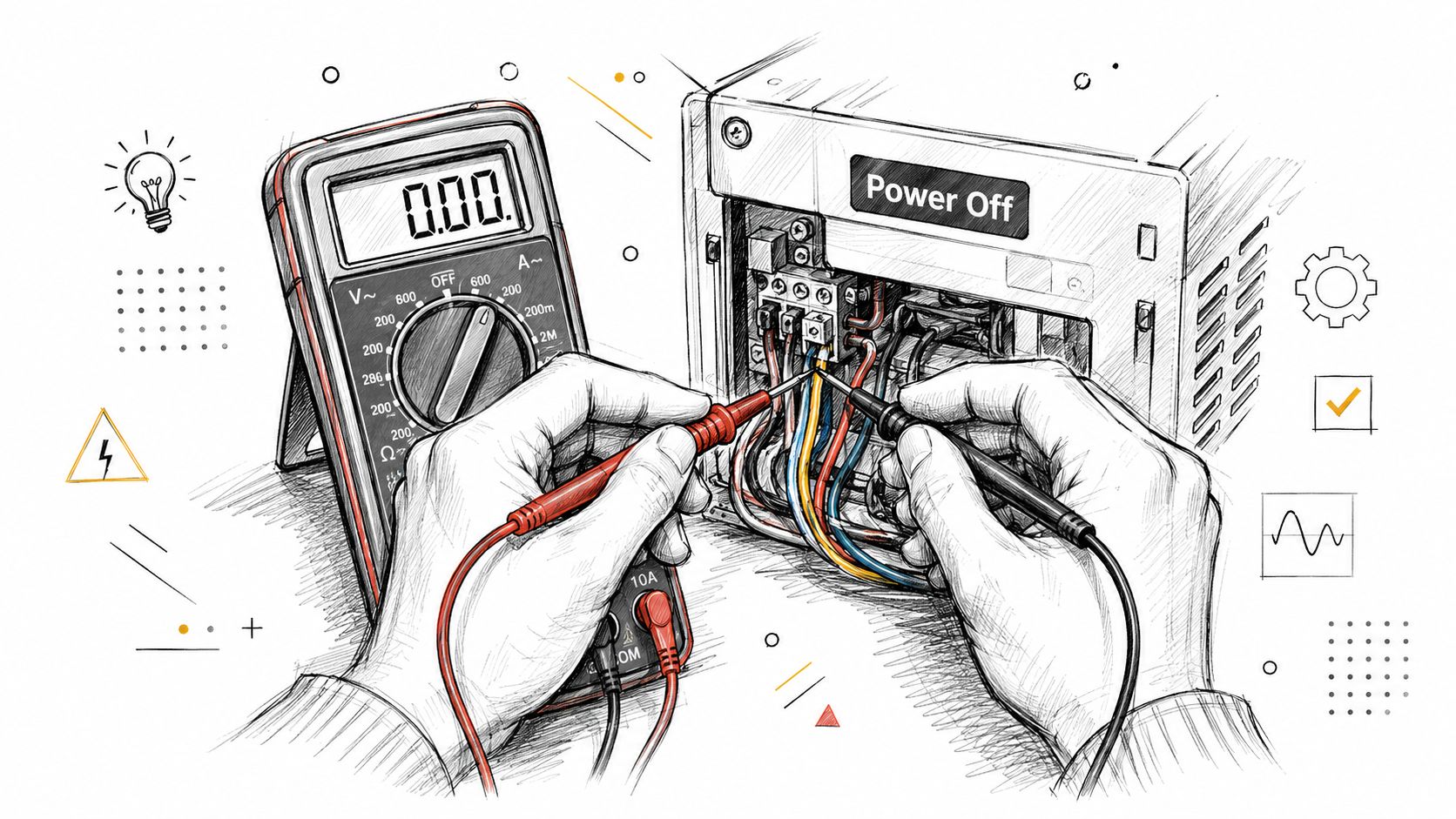
Start with the supply at the controller, not the label on the operator board. Nimbio devices need 6.5V to 24V AC/DC at the input. Measure the actual voltage on the terminals feeding the device. Then measure it again while the gate runs. If you need a reference for interpreting readings in the field, use Nimbio's guide to gate cellular strength after you confirm power is stable. Signal checks only matter once the controller is being fed correctly.
What to check when the device looks dead
No LEDs, no boot sequence, no response. Stay on the power path until that changes.
Use this order:
Measure voltage at the power source.
Test the exact terminals feeding the controller. Printed board markings are useful, but the meter decides the issue.Measure at the controller input.
If voltage is present at the operator but missing at the device, the problem is in the wire run, splice, fuse, or termination.Test under load.
Some gate boards show acceptable voltage at idle and sag once the motor starts or a lock pulls current.Trace both conductors end to end.
Follow the positive and common physically. Mislanded commons waste a lot of time because the voltage reading can look half-right until the circuit is asked to do real work.Inspect every termination and splice.
Loose set screws, oxidized wire, and wirenut splices inside outdoor cabinets cause intermittent faults that look like device failures.
One bad assumption causes a lot of repeat trips. Installers see 12V or 24V printed on the board and assume the accessory output is clean enough for a cellular controller. Some operators provide that power only on paper. Once the board, radio receiver, loop detector, and lock are all drawing from the same section, the controller gets the leftovers.
Power faults rarely look clean
A dead unit is easy. Intermittent behavior takes more discipline.
Watch for patterns like these:
- Boots, then drops offline during gate travel: accessory voltage is sagging when the operator motor starts
- Comes back after a few minutes: the board recovers once current demand falls
- Works with the cabinet open but fails when closed: a conductor is being pinched, flexed, or pulled at the terminal
- Triggers the gate sometimes but not every time: relay wiring is correct, but common or supply is unstable
- Shows healthy LEDs but no reliable cloud connection: power noise or low voltage is affecting the cellular radio before it causes a full shutdown
That last one matters on cellular installs. A weak or noisy supply can look like an RF problem because the modem browns out, re-registers, or fails to hold a stable session. New installers often move the antenna, replace the SIM, or call support before checking voltage during operator movement.
A clean isolation routine
Work from the symptom you can verify.
If the controller has no stable power, stay on supply and common until the input is correct.
If the controller has power but no gate action, test relay output and trigger wiring next.
If the controller is intermittent, cycle the operator while metering voltage and gently inspecting the harness, splices, and landing points.
A field routine that saves time:
- Label conductors before removing anything
- Change one connection at a time
- Retest during a full open and close cycle
- Check shared accessory power if other devices are already on that output
- Write down final terminal locations before closing the cabinet
Many "bad controller" calls end here. The hardware is fine. The operator's accessory output is unstable, the common is loose, or the power and trigger pairs were mixed during a retrofit. Those are site problems, and most can be corrected without replacing the access device.
Solving Cellular Connectivity and Signal Problems
A cellular access system avoids the usual Wi-Fi dropouts that plague many gates and call boxes, but cellular troubleshooting still has to be precise. Too many installers collapse every connection problem into “weak signal” and stop there.
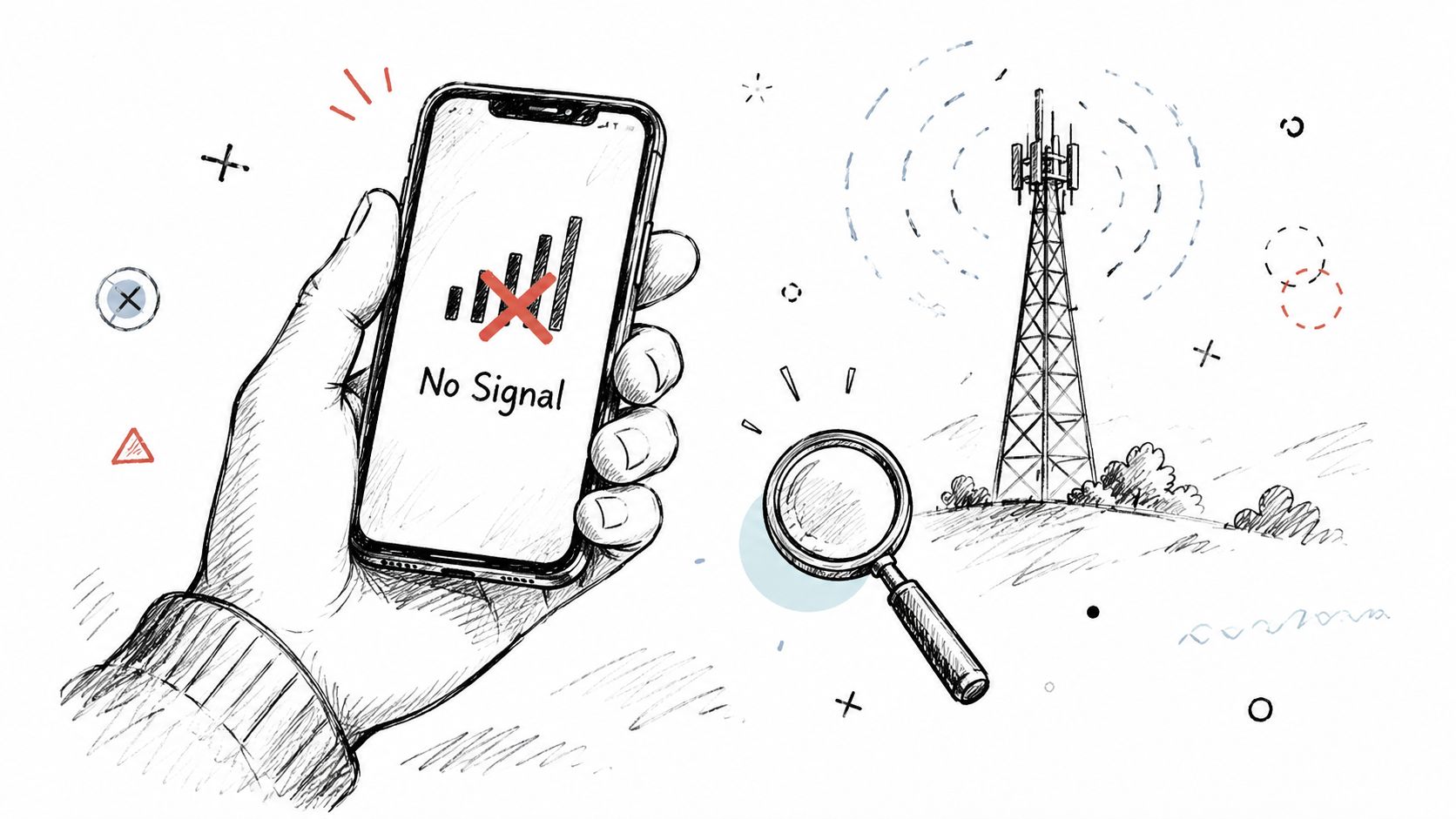
Recent industry data shows that 34% of cellular retrofit failures in gated communities stem from frequency-specific interference from nearby industrial equipment or dense concrete structures, while 80% of manufacturer troubleshooting guides only address basic antenna repositioning or SIM resets (cellular retrofit interference findings).
Poor signal and interference are not the same problem
This distinction matters.
Poor signal means the device isn't receiving enough usable cellular coverage where it's mounted.
Interference means coverage may exist, but something in the local environment is degrading stable communication.
Examples of interference-prone environments include:
- Dense concrete entry structures
- Metal enclosures or shielding surfaces
- Nearby industrial or utility equipment
- Motor-heavy sites with electrical noise
- Crowded equipment areas inside gate cabinets
A weak-signal fix might be better antenna placement. An interference problem may survive every reset and every basic repositioning attempt.
If a controller comes online briefly, then drops in a repeatable pattern at one site and nowhere else, the installer should suspect the environment before suspecting the app.
A practical field process for signal troubleshooting
Start with observation, not immediate changes. LED behavior, online status, and repeatability tell the story.
Use this process:
Confirm the symptom exactly.
Is the controller never connecting, connecting slowly, or dropping after initial registration?Check the mounting context.
Look at enclosure material, nearby machinery, and whether the antenna is trapped in a bad location.Test one positioning change at a time.
Move the antenna or controller location in a controlled way, then retest immediately.Compare idle versus active conditions.
If failures happen only when nearby equipment runs, interference becomes more likely.Verify full recovery after the change.
Don't stop when the device merely comes online. Confirm it stays online.
For installers working through a smart community retrofit, Nimbio's guide to gate cellular strength is a useful reference for evaluating placement and signal behavior in real gate environments.
What works and what usually doesn't
Some habits help. Some waste time.
What works
- Testing at the actual mounting spot: Not at the curb, not in the truck.
- Separating signal issues from power issues: A brownout can look like a network drop.
- Repositioning with intent: Move one variable, then verify.
- Watching for environmental triggers: Especially equipment that cycles on and off nearby.
What usually doesn't
- Resetting repeatedly without collecting observations
- Blaming the cellular network before checking the enclosure
- Declaring success after a brief reconnect
- Ignoring the effect of cabinet layout and building materials
For property managers, cellular access control still has a major advantage over Wi-Fi dependent systems. The communication path is more stable in normal use. But the installer still has to respect the radio environment, especially on dense multifamily or commercial sites.
Troubleshooting App Pairing and Provisioning
Sometimes the hardware is powered correctly, the gate trigger is wired correctly, and the cellular side is stable, but setup still stalls. At that point, the problem is usually in pairing or provisioning.
That part gets overlooked because the installer has already done the physical work. But access control only becomes useful when the device is attached to the right account, the app can talk to it locally when needed, and the property configuration matches the site.
Check the phone before blaming the hardware
A surprising number of pairing failures come from phone settings, not the gate system.
Run through the phone-side checks first:
- Bluetooth enabled: Pairing workflows often depend on local wireless communication during setup.
- Location services allowed: Some mobile operating systems restrict device discovery without location permission.
- App permissions approved: If Bluetooth or nearby device access was denied once, the app may fail later without immediate feedback.
- Correct user account: The installer may be signed into the wrong admin profile or a resident account with limited rights.
- Current app version: An outdated app can create avoidable provisioning friction.
A clean pairing test uses one known-good phone, one known-good login, and no extra variables. If multiple people are trying setup from different phones at the same time, the process gets muddy fast.
Provisioning mistakes that waste time
Provisioning errors usually fall into a few predictable buckets.
- Wrong property selected: The device gets assigned to the wrong site in the dashboard.
- Wrong gate or entry point chosen: The controller is online, but tied to a different opening action than expected.
- Incomplete credential setup: The admin account exists, but residents or managers don't have the expected permissions yet.
- Testing from the wrong workflow: The installer checks a resident function while logged in as an admin, or the reverse.
A pairing problem isn't always a connectivity problem. Often it's a permissions problem wearing a connectivity mask.
When the install includes integrations or custom workflows, the right place to validate expected behavior is the cellular access control API documentation. That's especially helpful when a property management workflow, visitor flow, or third-party automation depends on a specific event or status response.
For remote visitor management, provisioning details matter because the gate can appear “installed” before the people and permissions are usable. The hardware may be online, but if the wrong users, schedules, or entry points are configured, the property still experiences it as a failure.
The practical fix is simple. Treat provisioning like part of installation troubleshooting, not like an afterthought after the wiring is done.
Decoding Common Errors and Their Fixes
Fast troubleshooting gets easier when the technician organizes by symptom, forms a theory of probable cause, and changes only one thing before retesting. A six-step installation troubleshooting method built around problem identification, probable cause, controlled action, and immediate testing helps prevent new faults from being introduced during repair (six-step troubleshooting method).
Common Installation Symptoms and Solutions
| Symptom | Probable Cause | Recommended Solution |
|---|---|---|
| Device has no LED activity | No usable accessory power from the operator, wrong power terminal, or failed field connection | Measure at the operator terminal, verify the power path end to end, and retest under load |
| Device powers up but goes offline during gate movement | Voltage drop when the operator runs | Measure while the gate cycles and move the power feed to a stable accessory source if needed |
| Gate clicks but won't open | Relay wiring landed on the wrong trigger input or gate operator issue unrelated to the controller | Verify the control input terminals and confirm the operator opens correctly from a known local trigger |
| App shows device online but gate command fails | Trigger path issue, incorrect provisioning of the entry point, or operator input mismatch | Confirm the correct gate is assigned and test the relay path at the operator |
| Device connects, then drops intermittently | Environmental interference, weak placement, or unstable power | Separate signal testing from power testing and relocate only one element at a time |
| Pairing fails during setup | Phone permissions, Bluetooth disabled, or wrong account role | Check app permissions, enable required phone settings, and verify the installer is using the correct account |
| Gate status appears wrong in the app | Input wiring issue or mismatched status configuration | Recheck status input wiring and confirm the expected open/closed behavior after each test |
| Issue appeared after making several changes | Multiple simultaneous changes hid the original fault | Roll back to the last known good state and reintroduce one change at a time |
| System behavior seems inconsistent after install | Incomplete final verification | Test every intended function, including open, close, scheduled access, and any remote management workflow |
| Problem persists after physical fixes | Software or firmware state may need review | Check whether an over-the-air firmware update or dashboard-side configuration change is pending |
Use one-change testing or the fault will hide
New installers often lose time by making three corrections at once, then seeing the symptom disappear without knowing which correction mattered. That's how recurring service calls start.
Use this field discipline instead:
- Name the symptom plainly: “No power,” “offline after boot,” or “opens from local input but not from app.”
- Pick the likeliest cause first: Start with the simplest explanation you can verify.
- Change one thing: One wire move, one setting change, one placement adjustment.
- Test immediately: The result belongs to that one change.
- Record the outcome: Even a failed test narrows the path.
That approach isn't slow. It's usually the shortest path to a clean fix.
When to Escalate to Nimbio Support
You can lose an hour on site chasing a fault that no longer belongs to the field.
A common example is a cellular controller with clean power, correct relay wiring, and repeatable test results that still refuses to provision or behaves in a way that does not match the wiring state. At that point, more random changes usually make the case harder to diagnose. Escalation makes sense after the installer has ruled out the install basics and can show what the system is doing.
Cellular-based entry systems have a few failure patterns that are easy to misread. A gate operator can have enough voltage to boot the controller but still sag under load. RF conditions can look acceptable in one spot and fail after the enclosure is closed or mounted near noisy equipment. A status input can be landed correctly but still report the wrong state because the operator logic and app configuration do not agree. Those are good support cases if you have already tested them in a controlled way.
What to gather before opening a support case
Send the facts that shorten the first reply:
- Device serial number: Identifies the exact unit and account record.
- Voltage readings: Include the meter reading at the power terminals and whether you checked it during relay activity or startup.
- LED behavior: Note the color, blink pattern, and when it appears.
- Gate operator brand and model: That gives support the right wiring context right away.
- Wiring summary: State where power, relay, exit input, and status leads are landed.
- Cellular test conditions: Note enclosure door open or closed, antenna position, and any nearby equipment that may create interference.
- Steps already taken: List each test in order and the result you got.
- Photos: Clear terminal and enclosure photos prevent guesswork.
Good escalation notes are brief and specific. “Offline” does not help much. “24V measured at controller under load, relay wiring confirmed, LED remains in the same fault pattern, antenna moved and retested, issue unchanged with enclosure closed” gives support a starting point.
Use escalation to protect time, not as a last resort. Once you have isolated power, wiring, RF placement, and provisioning behavior, hand over a clean case and stop introducing new variables.
Nimbio helps properties modernize existing gates and entry systems with cellular-based access control, smartphone credentials, and remote visitor management, all without depending on Wi-Fi or replacing the entire gate operator. For installers, HOA boards, and property managers who want a cleaner retrofit path and a more manageable access system, Nimbio provides the hardware, platform, and support structure to get there.